DuckyDeck Studio — User Guide
DuckyDeck Studio is a native Linux configurator, DSVM v2 bytecode compiler, Wayland Auto-Switcher, and AI Macro Architect for the duckyPad Pro (2024) and duckyPad (2020), crafted with Rust, CXX-Qt, and KDE Plasma 6 Kirigami.
⚡ Hardware Portability vs. Host-Dependent Capabilities
DuckyDeck Studio combines standalone hardware configuration (compiled onto your duckyPad's microSD card) with host-assisted Linux desktop automation. Throughout the app, every feature is badged as either ✅ Hardware-Portable or 💻 Requires DuckyDeck Studio Running on Host PC so you always know what works when you unplug your duckyPad and move it to another computer.
| Capability | Portability | Requires DuckyDeck Studio Running? | Details |
|---|---|---|---|
Standard duckyScript 3 Macros (keyN.txt → .dsb) |
✅ Hardware-Portable | No (once synced to SD) | Keyboard shortcuts, STRING/STRINGLN, mouse moves, media keys, loops, and GOTO_PROFILE run natively on the duckyPad MCU on any OS. |
Key Labels, Static RGB Colors & Key Lighting Scripts (SWCC/SWCF/SWCR) |
✅ Hardware-Portable | No (once synced to SD) | Stored directly in config.txt and .dsb bytecode on the microSD card. |
OLED Orientation (0°, 90°, 180°, 270°) |
✅ Hardware-Portable | No (once synced to SD) | Saved to config.txt on the microSD card (`270°` requires DuckyDeck Studio Firmware v1.0.0). |
🚀 Launch Application Action (APP badge) |
⚠️ Host-Dependent (Not Portable) | Yes (must be running on Host PC) | Emits a silent _GV31 USB HID trigger or F13–F24 hotkey that DuckyDeck Studio listens for on your Linux PC to spawn local apps. |
🌐 Web API / HTTP Webhook Action (API badge) |
⚠️ Host-Dependent (Not Portable) | Yes (must be running on Host PC) | The duckyPad has no Wi-Fi/Ethernet stack; DuckyDeck Studio executes the HTTP request on the host PC when triggered via USB HID. |
| 🌈 Live RGB Ambient Animator (Rainbow Wave / Breathing / Reactive) | ⚠️ Host-Dependent (Live USB HID) | Yes (must be running on Host PC) | Streams 20 FPS RGB frames over USB HID 0x17. Stopping DuckyDeck Studio restores the profile's static SD card colors. |
| 🪟 Wayland Window Auto-Switcher & Floating OLED Desktop Widget | ⚠️ Host-Dependent (KDE Plasma 6) | Yes (must be running on Host PC) | Uses a KWin Wayland D-Bus hook and USB HID 0x03 to switch profiles when active windows change and render the desktop widget. |
🎬 Video Tour & Application Screenshots
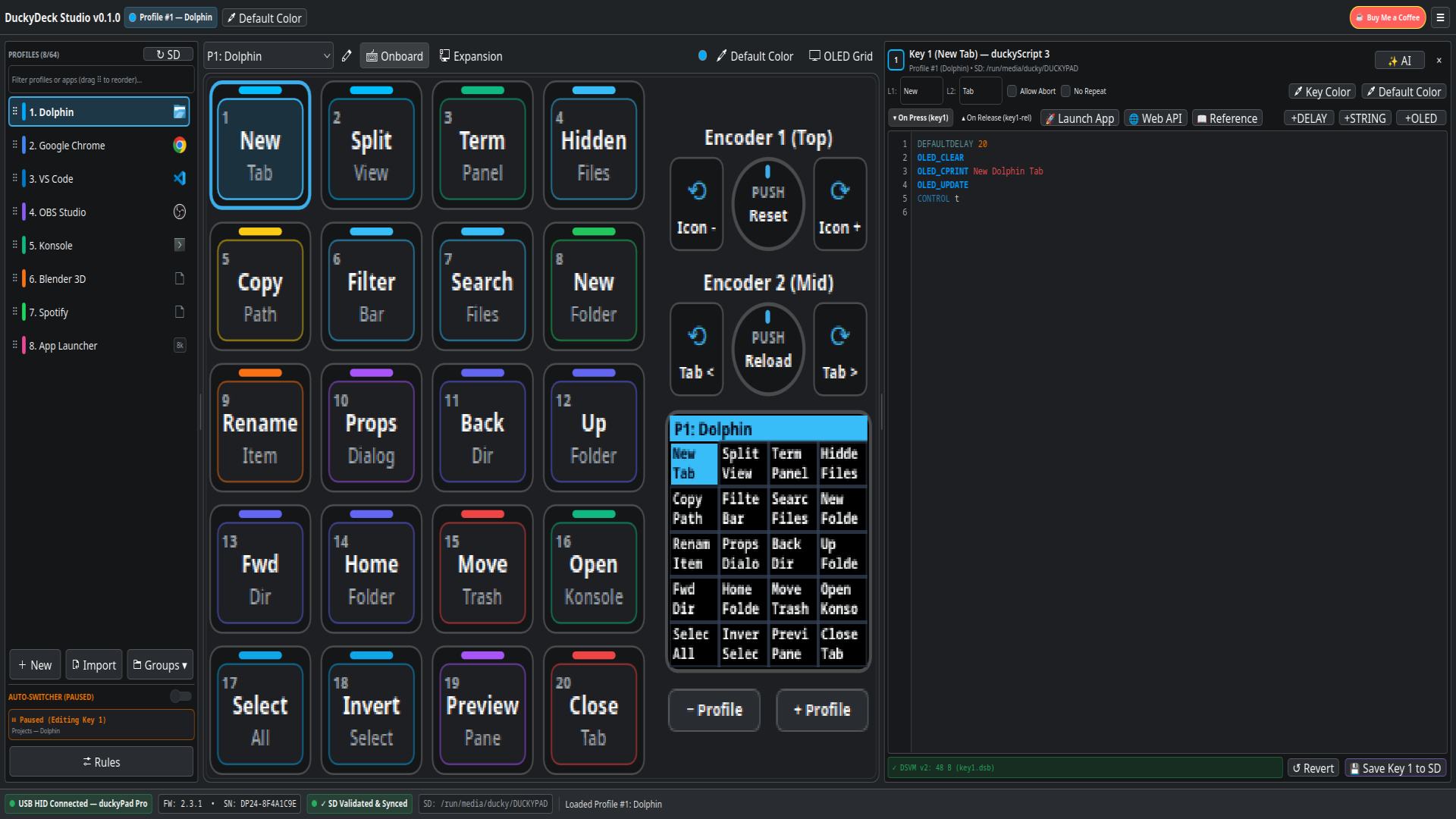
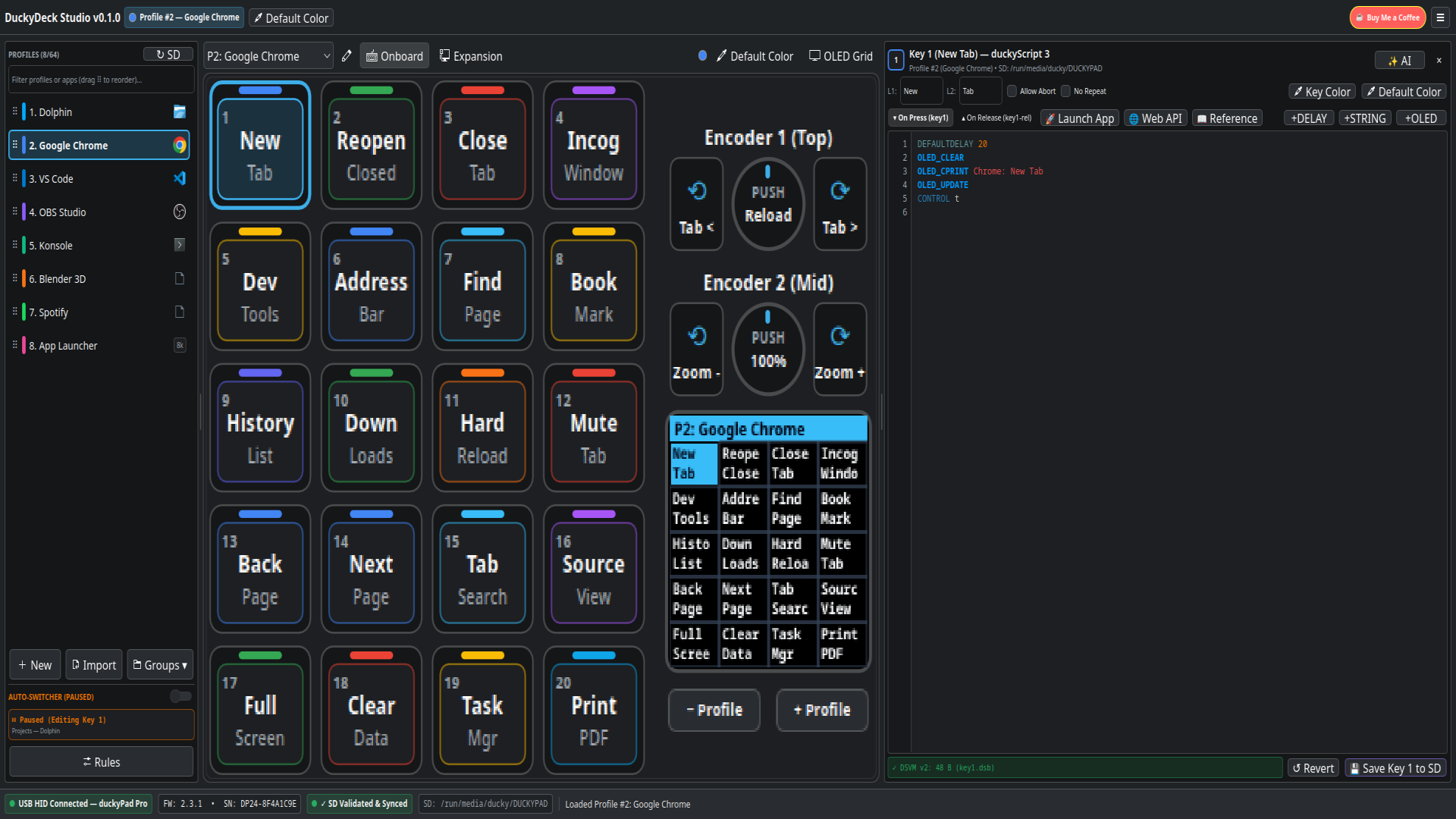
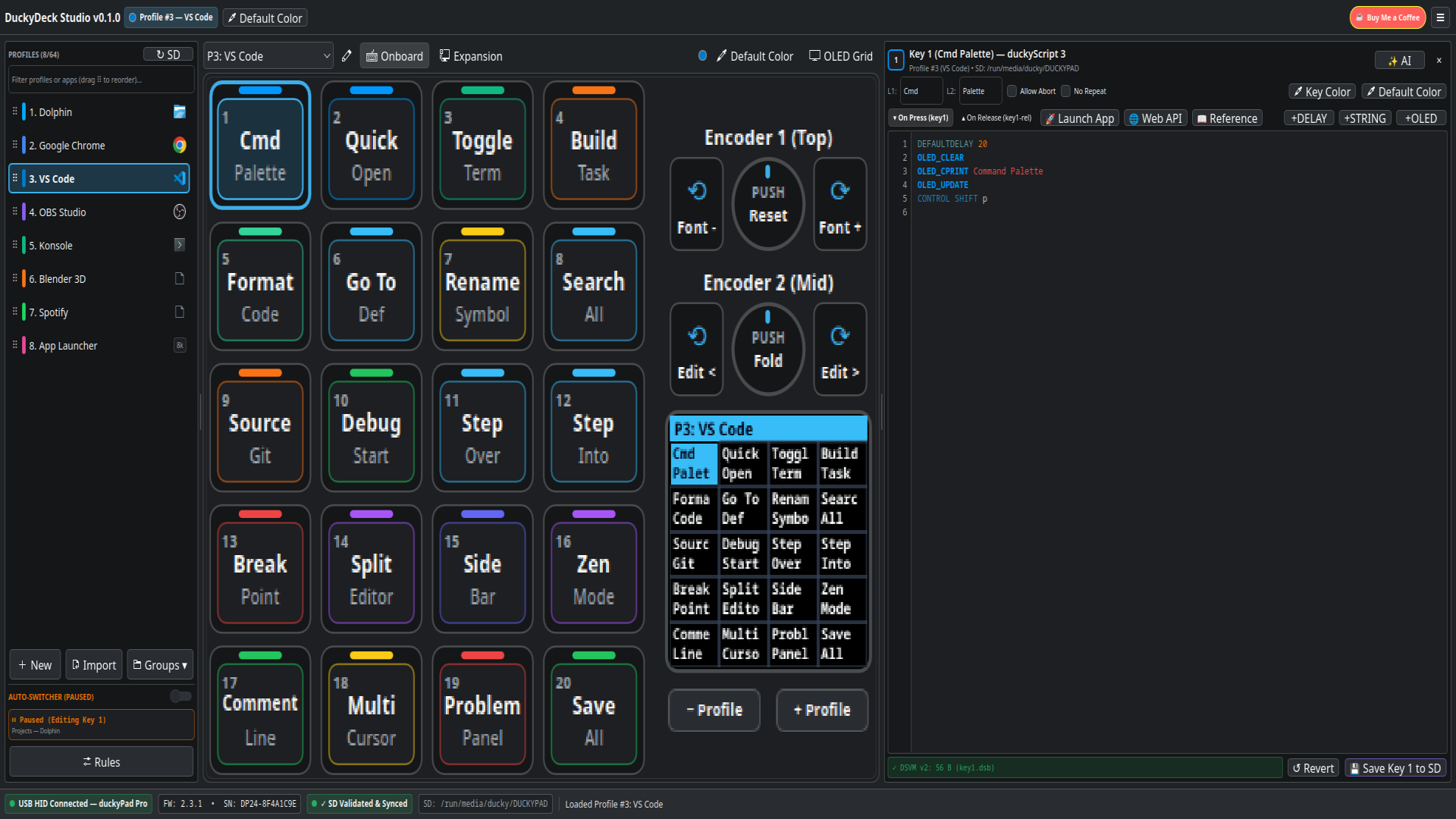
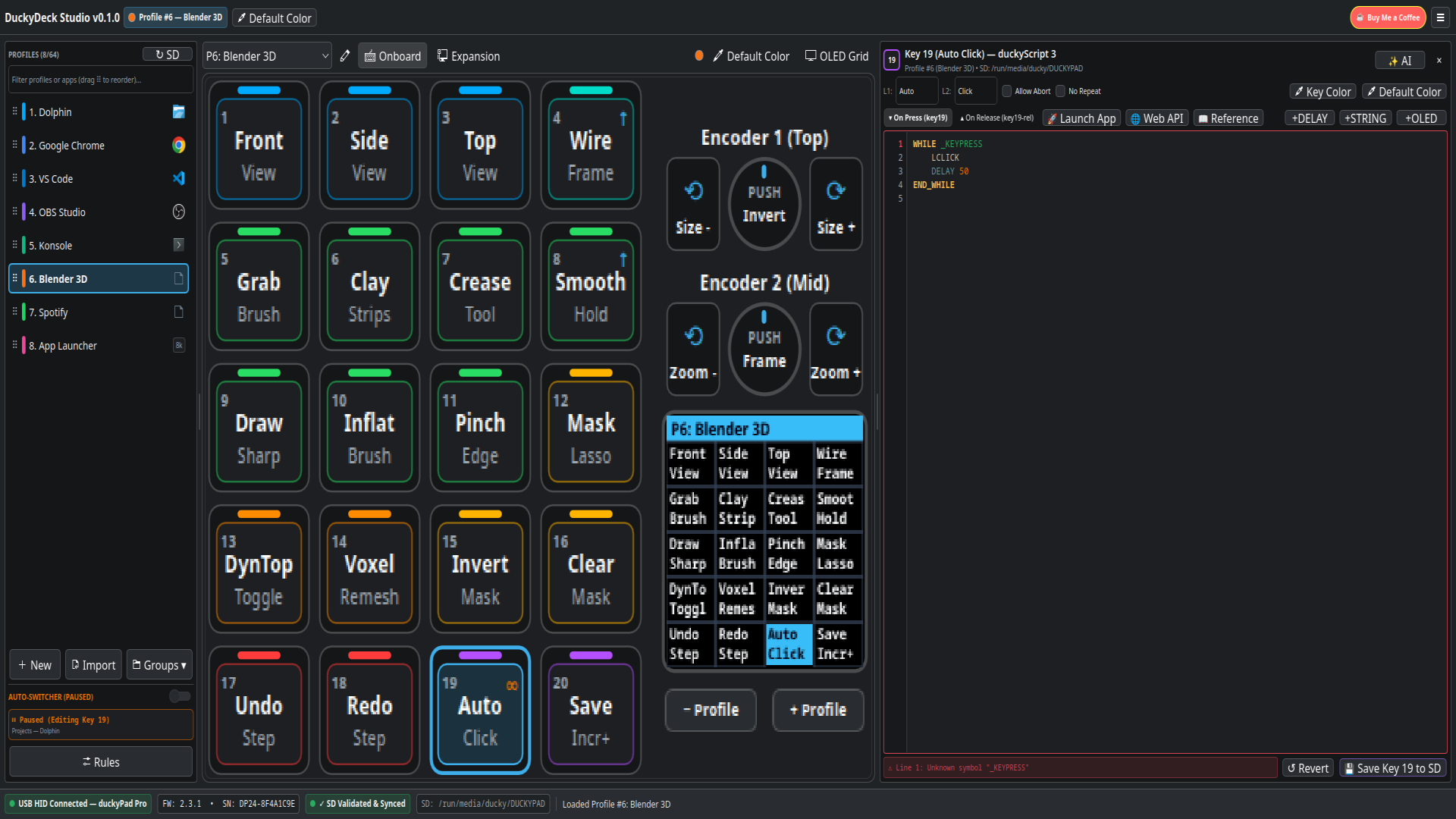
Watch the full 1080p walkthrough of DuckyDeck Studio in action across profiles for Dolphin, Google Chrome, VS Code, OBS Studio, KDE Konsole, Blender 3D, Spotify, and the Desktop App Launcher:
📦 1. Downloading from GitHub, Installation & USB HID Permissions
DuckyDeck Studio is open-source and hosted on GitHub at
github.com/russellmilliner/duckydeck-studio.
It communicates directly with your duckyPad over USB HID (hidraw) for real-time profile switching,
LED color previews, RTC clock sync, and Persistent Global Variables (_GV0.._GV31), and mounts or reads the
duckyPad microSD card for profile storage.
Step 1: Download or Clone from GitHub
🐙 Option A: Clone with Git (Recommended)
Clone the repository directly so you can easily pull updates with git pull:
git clone https://github.com/russellmilliner/duckydeck-studio.git
cd duckydeck-studio
📥 Option B: Download ZIP or Release from GitHub
Visit github.com/russellmilliner/duckydeck-studio and click Code → Download ZIP (or browse GitHub Releases), or download via terminal:
curl -L https://github.com/russellmilliner/duckydeck-studio/archive/refs/heads/master.zip -o duckydeck-studio.zip
unzip duckydeck-studio.zip
cd duckydeck-studio-master
Step 2: Install Build Prerequisites
-
Arch Linux / CachyOS / EndeavourOS / Manjaro:
sudo pacman -S --needed base-devel rust clang cmake ninja pkgconf \ qt6-base qt6-declarative kirigami syntax-highlighting hidapi libusb -
Fedora (40 / 41+):
sudo dnf install cargo rust clang cmake ninja-build pkgconf-pkg-config \ qt6-qtbase-devel qt6-qtdeclarative-devel kf6-kirigami-devel \ kf6-syntax-highlighting-devel hidapi-devel libusb1-devel systemd-devel -
Ubuntu (24.04+) / Debian / KDE Neon:
sudo apt install build-essential cargo rustc clang cmake ninja-build pkg-config \
    qt6-base-dev qt6-declarative-dev libkf6kirigami-dev \
    libkf6syntaxhighlighting-dev libhidapi-dev libusb-1.0-0-dev libudev-dev
Step 3: Build & Install DuckyDeck Studio
Compile the optimized release binary and install the executable, desktop launcher, icon, and duckyScript 3 syntax highlighting definition:
# 1. Compile optimized release binary
cargo build --release

# 2. Install binary to ~/.local/bin
install -Dm755 target/release/duckydeck-studio ~/.local/bin/duckydeck-studio

# 3. Install duckyScript 3 syntax highlighting for KDE KSyntaxHighlighting
install -Dm644 data/syntax/duckyscript3.xml \
    ~/.local/share/org.kde.syntax-highlighting/syntax/duckyscript3.xml

# 4. Install desktop entry, icon, and documentation
install -Dm644 data/io.github.duckydeck.Studio.desktop \
    ~/.local/share/applications/io.github.duckydeck.Studio.desktop
install -Dm644 data/icons/io.github.duckydeck.Studio.svg \
    ~/.local/share/icons/hicolor/scalable/apps/io.github.duckydeck.Studio.svg
install -Dm644 docs/user-guide.html \
    ~/.local/share/duckydeck-studio/docs/user-guide.html

# 5. Launch DuckyDeck Studio
~/.local/bin/duckydeck-studioPermissionDenied on /dev/hidraw*), DuckyDeck Studio automatically displays an inline
yellow banner at the top of the window. Click Install Rules to authorize the 70-duckypad.rules installation via Polkit, or run:
sudo ./data/udev/install-udev-rules.shSupported Hardware Matrix
| Model | USB VID:PID | Mechanical Keys | Rotary Encoders | Expansion Channels | OLED Display |
|---|---|---|---|---|---|
| duckyPad Pro (2024) | 0x0483:0xd11d |
20 RGB Keys (4×5) | 2 Encoders (Slots 21–26) | Up to 32 Channels (Slots 27–58) | 128×128 Monochrome |
| duckyPad (2020) | 0x0483:0xd11c |
15 RGB Keys (3×5) | — | — | 128×64 Monochrome |
🖥️ 2. The 3-Column Workspace
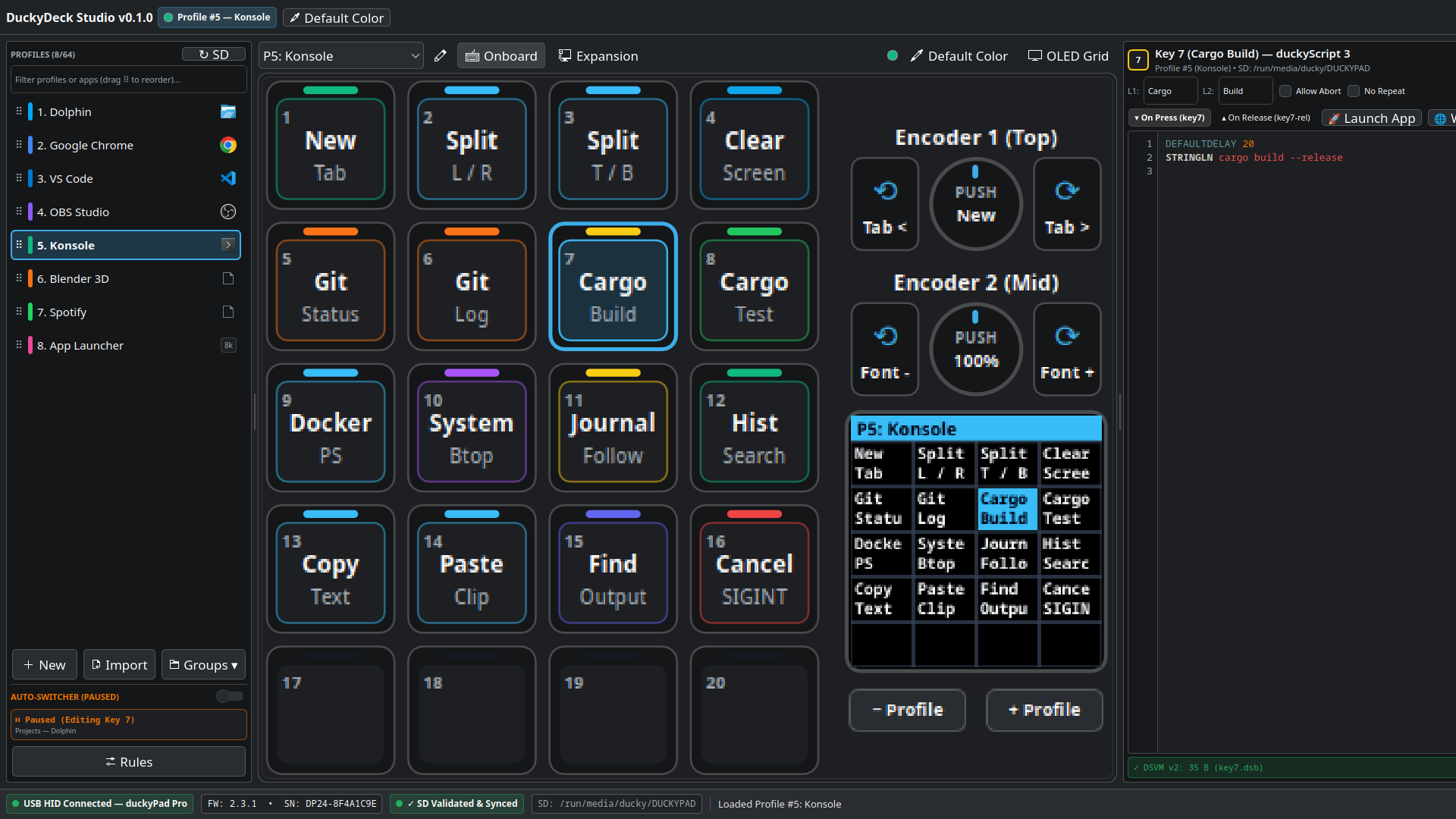
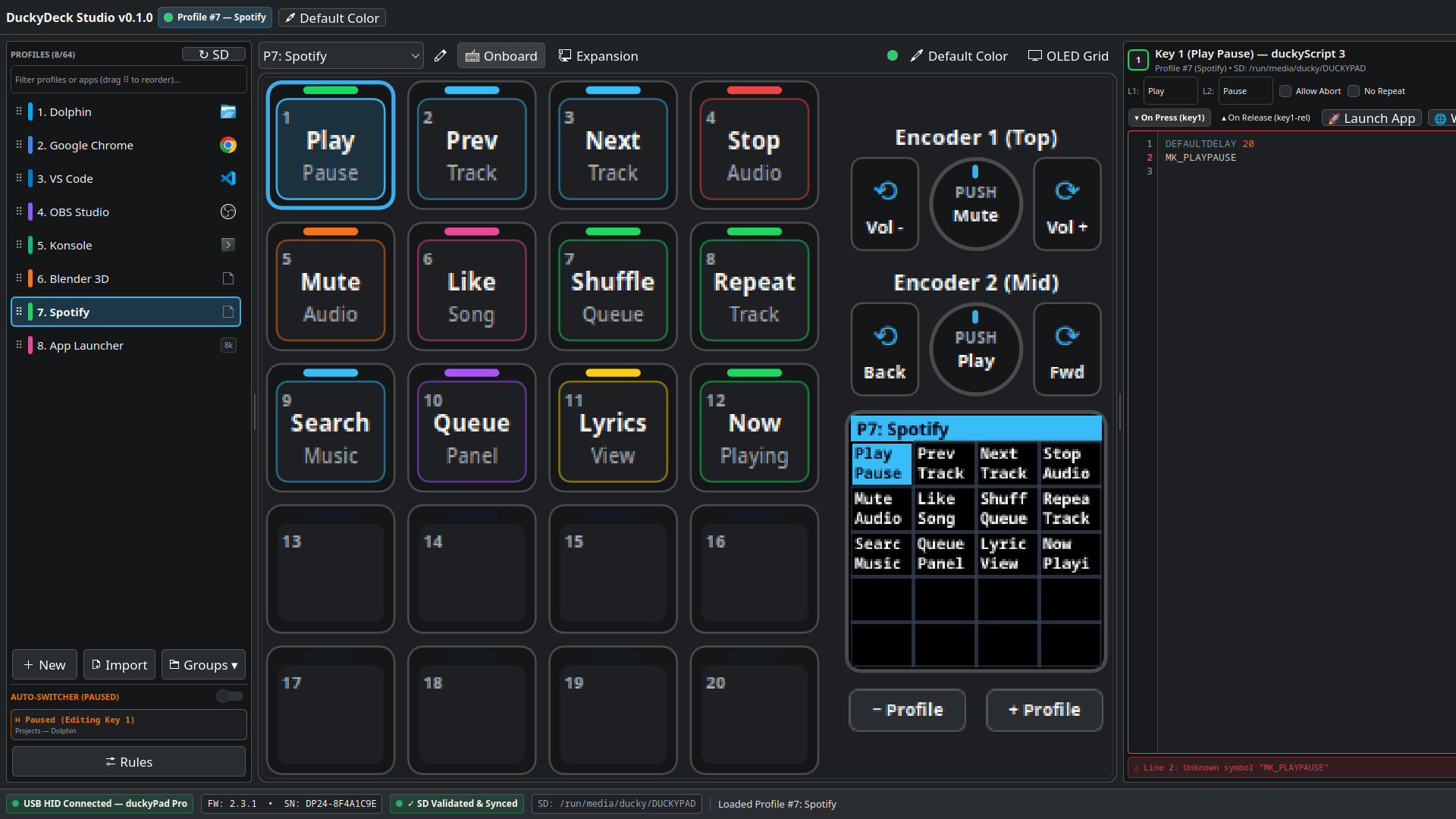
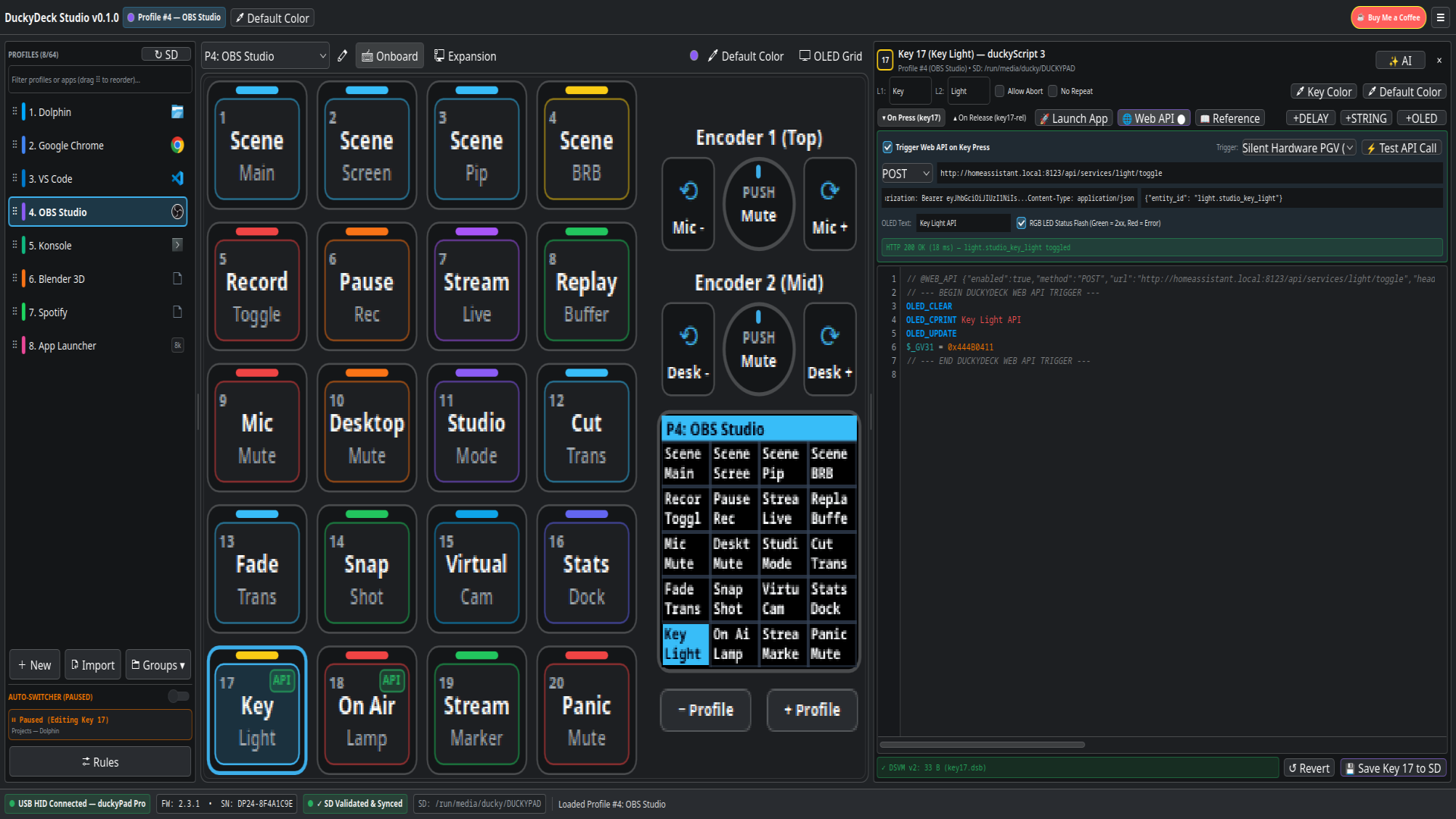
1️⃣ Left Column: Profiles, Templates & Auto-Switcher
Browse up to 64 hardware profiles, filter by profile name or bound application, create profiles from built-in or user Templates,
drag-and-drop the ⠿ handle to reorder profiles, click any profile's color bar to change its default LED color (`BG_COLOR`), and monitor or configure KWin Wayland Auto-Switcher rules.
2️⃣ Center Column: Interactive Hardware Canvas
Interact with the 4×5 RGB key matrix (Keys 1–20), Dual Rotary Encoders (Slots 21–26), live 128×128 OLED screen simulator, and 32 Expansion Module channels (Slots 27–58). Drag and drop keys to swap or shift (`Shift + Drag`) slots.
3️⃣ Right Column: Key Inspector & Script IDE
Opens automatically when you click a key or encoder slot. Edit Line 1 / Line 2 OLED labels (up to 7 characters each), toggle Allow Abort and No Repeat, write `On Press` (`keyN.txt`) and `On Release` (`keyN-release.txt`) scripts, or configure no-code 🚀 Launch App and 🌐 Web API actions.
☕ Top Bar & Hamburger Menu (`☰`)
Displays the active application version, active profile badge, quick Default Color button, ☕ Buy Me a Coffee Ko-fi button, and the ☰ Hamburger Menu for SD sync & mounting, profile templates, profile groups, PGV variables, System Event Log, Settings, and About.
🗂️ 3. Profiles, Templates & Profile Groups
The duckyPad Pro supports up to 64 profiles (`profile_1` through `profile_64`). Each profile stores its own default background LED color (`BG_COLOR`), per-key custom colors (`SWCOLOR`), key labels (`zN` / `xN`), OLED & Desktop Widget orientations, and compiled bytecode binaries (`.dsb`).
- Create a Profile (Blank or From Template): Click + New at the bottom of the left sidebar, type a name (up to 16 characters), optionally select any built-in or user-saved Template from the dropdown, and press Enter.
- 📋 Profile Templates:
- Click 📋 Templates... at the bottom of the sidebar (or 📋 Profile Templates... in the `☰` menu) to browse built-in starter templates (Media & Volume Deck, IDE & Git Workflow, Browser & Research, Numeric Keypad (Numpad)) and your own custom templates (`~/.config/duckydeck-studio/profile_templates/`).
- Copy Any Profile to a Template: Right-click any profile in the sidebar and choose 📋 Save Profile as Template... (or click 📋 Save as Template... in Profile Settings) to save its keys, scripts, colors, and orientations as a reusable template.
- Apply a Template to an Existing Profile: Open 📋 Templates... and click Apply to Current Profile to overwrite the active profile with that template's layout.
- ⚙ Profile Settings (OLED, Instant Desktop Widget Orientation & Profile Change Webhook): Click the ⚙ Profile Settings button in the center toolbar (or right-click a profile → Profile Properties...) to configure:
- Hardware OLED Orientation (`0°`, `90°`, `180°`, `270°`): Rotates the physical duckyPad Pro OLED screen and key grid (`180°` & `270°` require DuckyDeck Studio Firmware `v1.0.0`).
- 💻 Desktop Widget Orientation (`Follow OLED`, `0°`, `90°`, `180°`, `270°`): Independently orient the floating on-screen Desktop Widget without changing how the physical duckyPad sits on your desk! Changes apply immediately and do not require a microSD card sync.
- 🔔 Profile Change Webhook (On Profile Activated): Configure a per-profile HTTP webhook (`GET`/`POST`/`PUT`/`PATCH`/`DELETE`, URL, custom headers, and JSON body with placeholders `{{profile_number}}`, `{{profile_name}}`, `{{previous_profile_number}}`, `{{previous_profile_name}}`, `{{source}}`, `{{device_serial}}`, `{{timestamp}}`) that fires automatically whenever that profile becomes active.
- Dim Unused Keys (`DIM_UNUSED_KEYS`): Automatically turns off LEDs on unconfigured keys.
- Reorder Profiles: Drag any profile by its
⠿handle (or right-click and choose Move Profile Up / Down). Associated Auto-Switcher rules automatically update to follow the moved profile! - Profile Groups (`.duckygroup.json`): Click Groups ▾ at the bottom of the sidebar (or in the `☰` menu) to save all profiles and Auto-Switcher rules into a single portable `.duckygroup.json` bundle, load an existing bundle, or start a fresh workspace.
🎹 4. Interactive Hardware Canvas & OLED Simulator
- Select / Deselect a Slot: Left-click any key (1–20), encoder action (21–26), or expansion slot (27–58) to open the Right Inspector. Click the selected key again (or click
✕in the inspector header) to close the inspector. - Drag-and-Drop Swap vs. Shift:
- Drag & Drop: Swaps the source key and target key (including scripts, labels, and custom RGB colors).
- Shift + Drag & Drop: Inserts the dragged key at the target slot and shifts intermediate keys!
- Right-Click Key Context Menu:
- Copy Key X / Paste → Slot Y: Copy a key's full configuration and paste it onto another key (even across different profiles).
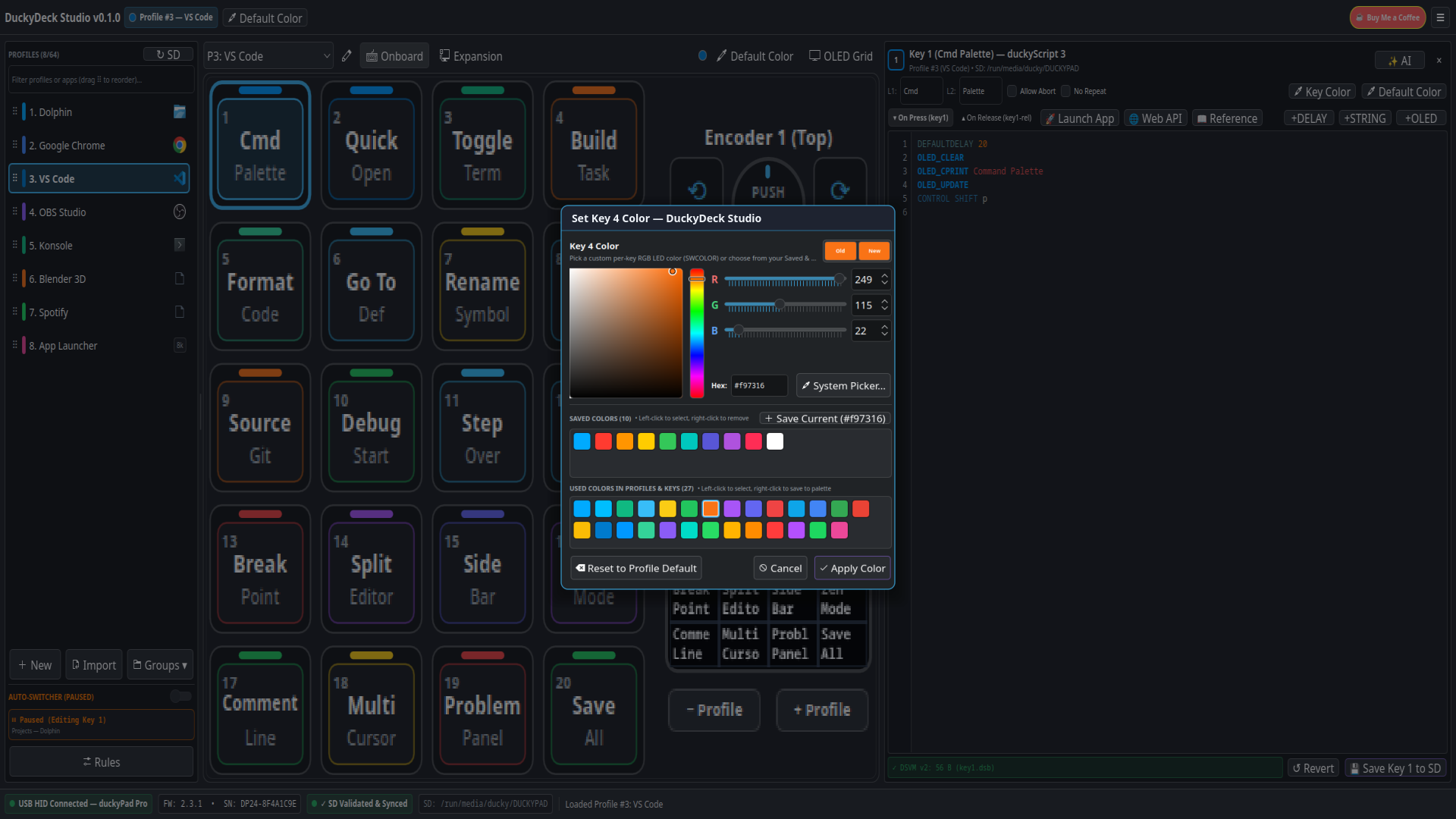
- Set Key X Color: Opens the Color Picker window with your Saved & Used color palettes.
- Clear / Reset Key X: Clears labels, scripts, and custom RGB color on that slot.
- Toolbar Toggles:
- ⚙ Profile Settings: Configure profile name, default LED color, Hardware OLED Orientation (`0°`, `90°`, `180°`, `270°`), instant Desktop Widget Orientation (`Follow OLED`, `0°`, `90°`, `180°`, `270°`), and Per-Profile Change Webhooks.
- ⚡ 32ch: Show or hide the 4×8 (32-channel) Expansion Module panel (Slots 27–58).
- OLED: Grid / Script: Preview either the standard 4×5 key label grid or custom `OLED_LINE` / `OLED_CIRCLE` / `OLED_RECT` drawing commands on the simulated 128×128 OLED screen.
🎨 5. Key & Profile Color Picker (Saved & Used Palettes)
Open the Color Picker by right-clicking any keycap and choosing Set Key X Color, clicking Key Color in the right inspector, or clicking Default Color in the top bar / center toolbar / profile sidebar.
🌈 Interactive HSV + RGB Controls
- 2D Saturation / Value Square & Hue Bar: Drag the crosshair to blend shades visually.
- R / G / B Sliders & SpinBoxes (`0–255`): Dial in exact hardware LED values.
- Hex Input (`#RRGGBB`) & Old/New Swatch: Paste hex codes directly or click the Old swatch to revert.
- System Picker...: Launch the native KDE/OS color dialog and screen eyedropper anytime.
📌 Saved Colors & Used Colors Palettes
- Saved Colors Palette: Click + Save Current (`#RRGGBB`) to pin colors to your persistent palette (`~/.config/duckydeck-studio/kwin_rules.json`). Left-click to select, double-click to apply immediately, or right-click a swatch to remove it.
- Used Colors Palette: Automatically lists every unique color currently used in any profile's `BG_COLOR` or key's `SWCOLOR` across all loaded profiles. Left-click to reuse a color, or right-click a Used Color swatch to add it to your Saved Colors!
- Reset to Profile Default: When editing a key color, click Reset to Profile Default to remove its custom `SWCOLOR` and inherit the profile's `BG_COLOR`.
💾 6. microSD Sync, Mounting & Firmware Manager (`v1.0.0` & Official Catalog)
Edits you make in DuckyDeck Studio are saved immediately to your local profile cache (`~/.local/share/duckydeck-studio/profiles_cache/`) so you never lose work, even when the duckyPad is unplugged.
- Mount SD Card (`☰ → Mount SD Card`): When an unmounted duckyPad microSD card (or USB Connected Duckypad) is detected, the `☰` menu displays Mount SD Card so you can mount it with one click without triggering a full sync.
- Status Bar Sync Badge: The bottom status bar shows whether your local profiles match the hardware microSD card (✓ SD Synced vs. ⚠ Unsynced Changes). Host-only settings like Desktop Widget Orientation (`DW_ROTATION`) and Profile Change Webhooks apply immediately without requiring an SD sync.
- 📋 Changes Summary: Click the sync status badge (or 📋 Summary) to inspect a per-profile diff of added, modified, or deleted keys before writing to hardware.
- ⬆ Sync to SD: Mounts the duckyPad Pro microSD card (automatically via USB Mass Storage mode `0x1B` + `udisksctl`, or direct SD mount), compiles every `keyN.txt` script into a DSVM v2 `.dsb` binary, writes `config.txt` and `profile_info.txt`, flushes the filesystem, and verifies the written files.
- DuckyDeck Studio Firmware (
v1.0.0—DPP_FW_1.0.0_ad2acc81.bin) & Official Firmware Catalog Downloader:-
Download Firmware Binary:
⬇ GitHub Release (
DPP_FW_1.0.0_ad2acc81.bin) | ⬇ Direct Download (DPP_FW_1.0.0_ad2acc81.bin, IEEE CRC32:ad2acc81) - DuckyDeck Studio includes its own custom firmware build versioned as
1.0.0(based on upstreamduckyPad-Pro 3.3.5/ DSVM v2, identified by the DuckyDeck Studio icon badge in the status bar and USB HID0x00signature bytes'D','D','S'). - Download Official Firmware List in Firmware Manager (
☰ → Firmware Update...): Click ⬇ Fetch Official List from Site inside the Firmware Manager window to query the officialdekuNukem/duckyPad-Prorepository, browse all available official firmware versions, and click ⬇ Download .bin or Download & Install Selected Firmware (with automatic IEEE CRC32 checksum verification).
-
Download Firmware Binary:
⬇ GitHub Release (
🔧 What DuckyDeck Studio Firmware v1.0.0 Adds Over Standard duckyPad Pro Firmware (3.3.5)
| Capability | Standard Official Firmware (3.3.5) |
DuckyDeck Studio Firmware (1.0.0 — DPP_FW_1.0.0_ad2acc81.bin) |
|---|---|---|
| 1-Bit Monochrome OLED Key Icons | ASCII 32..126 text only (? for non-ASCII) |
✅ Adaptive 1-bit pixel-art icons: full-cell 16×16 icon when Line 2 is empty, top-line 10×10 icon above a Line 2 text caption, and inline 7×10 / 6×8 icon glyphs mixed with text |
| UTF-8 Key Labels & Buffer Size | 8-byte buffer (KEYNAME_SIZE 8), raw byte truncation at 5 bytes |
✅ 24-byte UTF-8 buffer (KEYNAME_SIZE 24) with multi-byte UTF-8 codepoint decoding, glyph-aware truncation (5 glyphs in 0°/180°, 4 glyphs in 90°/270°), and dual ui_z<N>/ui_x<N> + ASCII fallback z<N>/x<N> directives |
| Hardware OLED Screen Orientation | 0° (Portrait) and 90° CW (IS_LANDSCAPE 1) only |
✅ Full 4-Way Rotation (0°, 90°, 180°, 270°): adds 180° Inverted Portrait (IS_LANDSCAPE 2 / OLED_ROTATION 180) and 270° Counter-Clockwise Landscape (IS_LANDSCAPE 3 / OLED_ROTATION 270) with automatic CCW 4×5 grid coordinate remapping |
USB HID Firmware Identification (0x00) |
Reports version 3.3.5, no custom capability signature |
✅ Reports 1.0.0 + 'D','D','S' signature bytes (offsets 19..21) so DuckyDeck Studio automatically detects custom firmware support |
| DSVM v2 Bytecode & SD Compatibility | DSVM v2 (.dsb) |
✅ 100% compatible with all DSVM v2 .dsb scripts and standard microSD profiles |
📜 7. duckyScript 3 & Built-In DSVM v2 Bytecode Compiler
DuckyDeck Studio includes a full, pure-Rust duckyScript 3 → DSVM v2 (`.dsb`) bytecode compiler with real-time syntax checking and KDE `KSyntaxHighlighting`. Standard duckyScript 3 macros are 100% Hardware-Portable once synced to your microSD card.
- Live Bytecode Verification: As you type in the script editor, the header badge shows
✓ Valid DSVM (N B)or highlights the exact line number and syntax error. - On Press vs. On Release Tabs: Every key and slot supports both an On Press (`keyN.txt`) script and an On Release (`keyN-release.txt`) script.
- 📖 Command Reference Drawer: Click 📖 Reference in the script toolbar to browse and insert all duckyScript 3 commands (`STRING`, `STRINGLN`, `DELAY`, `KEYDOWN`, `KEYUP`, `SWCC`, `SWCF`, `SWCR`, `OLED_PRINT`, `OLED_LINE`, `OLED_RECT`, `OLED_CIRCLE`, `OLED_UPDATE`, `IF/ELSE/END_IF`, `WHILE/END_WHILE`, `FUNCTION/END_FUNCTION`, `GOTO_PROFILE`, `_GV0.._GV31`, etc.).
🚀 8. Launch Application Builder
Turn any duckyPad key into a one-press Linux application launcher without writing shell scripts by hand.
- Select a key (1–20) to open the Right Inspector and click the 🚀 Launch App button in the editor toolbar.
- Check Launch Application on Key Press.
- Click 📦 Pick Installed App... to search all installed desktop applications (`.desktop` entries from `/usr/share/applications`, Flatpak exports, and `~/.local/share/applications`) with icons, descriptions, and categories—or type any custom command and arguments.
- Choose the Trigger Mode:
- Silent Host Launch (`_GV19`) (Default — No Keyboard Shortcut Needed): Pressing the key on the duckyPad writes a unique profile+slot token to `_GV19`. DuckyDeck Studio's background HID listener detects the change and spawns the application directly on your Linux desktop!
- F13–F24 Global Hotkey (`evdev`): Emits `F13`–`F24` over USB HID keyboard and triggers the launch via DuckyDeck Studio's background `evdev` listener.
- Click ▶ Test Launch anytime to test the command immediately and inspect the result in the System Event Log (`APP_LAUNCH`).
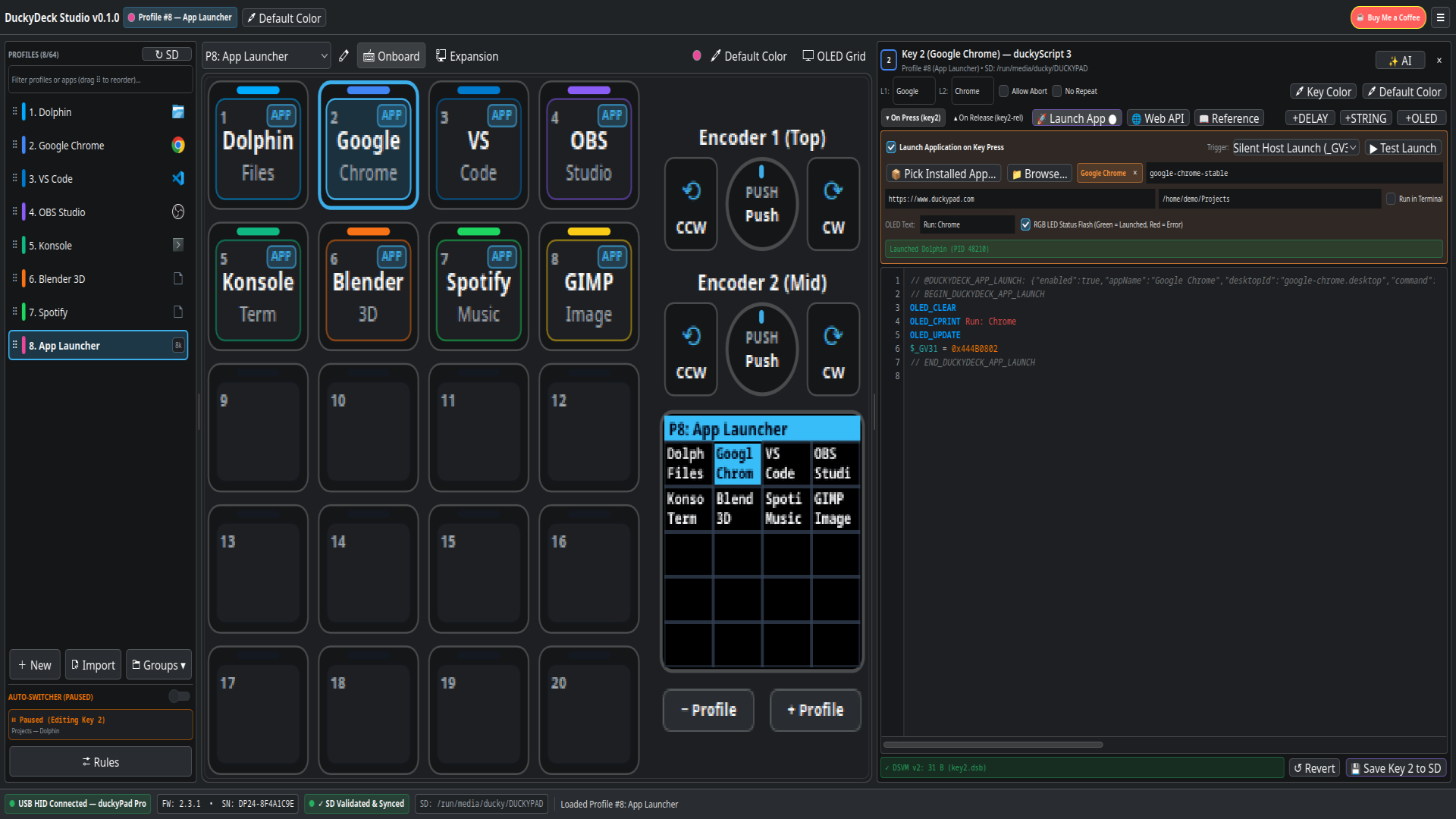
APP keycap badges and instant USB HID host launching.🌐 9. Web API / Webhook Builder & 🏠 Home Assistant Entity Search
Trigger Home Assistant devices/entities, REST APIs, Miniflux, OBS, or custom HTTP endpoints directly from a duckyPad key:
- Select a key and click 🌐 Web API in the inspector toolbar (or open the full Web API / HTTP Webhook configurator window).
- 🏠 Search Home Assistant Devices & Entities:
- Enter your Home Assistant URL (e.g.
http://homeassistant.local:8123) and a Long-Lived Access Token (created in Home Assistant under Profile → Security → Long-Lived Access Tokens), then click Save HA Connection. - Select a domain filter (
All Domains,light,switch,scene,script,automation,button,input_boolean,media_player,cover,fan,climate,lock), type a search query, and click 🔍 Search Entities. - Click ⚡ domain.service (or Turn On / Turn Off) next to any entity to automatically populate the HTTP
POSTendpoint (/api/services/<domain>/<service>),Authorization: Bearerheader, JSON{"entity_id": "..."}body, and OLED feedback text for the selected key!
- Enter your Home Assistant URL (e.g.
- Custom REST / Webhook Endpoints: Configure any HTTP Method (`GET`, `POST`, `PUT`, `PATCH`, `DELETE`), URL, custom headers (`Header: Value` per line), and request body (JSON/text).
- Click Test Webhook Now to fire the HTTP request immediately and view status codes, latency, and errors in the System Event Log (`WEB_API`).
🪟 10. KDE Plasma 6 Wayland Auto-Switcher & Floating OLED Desktop Widget
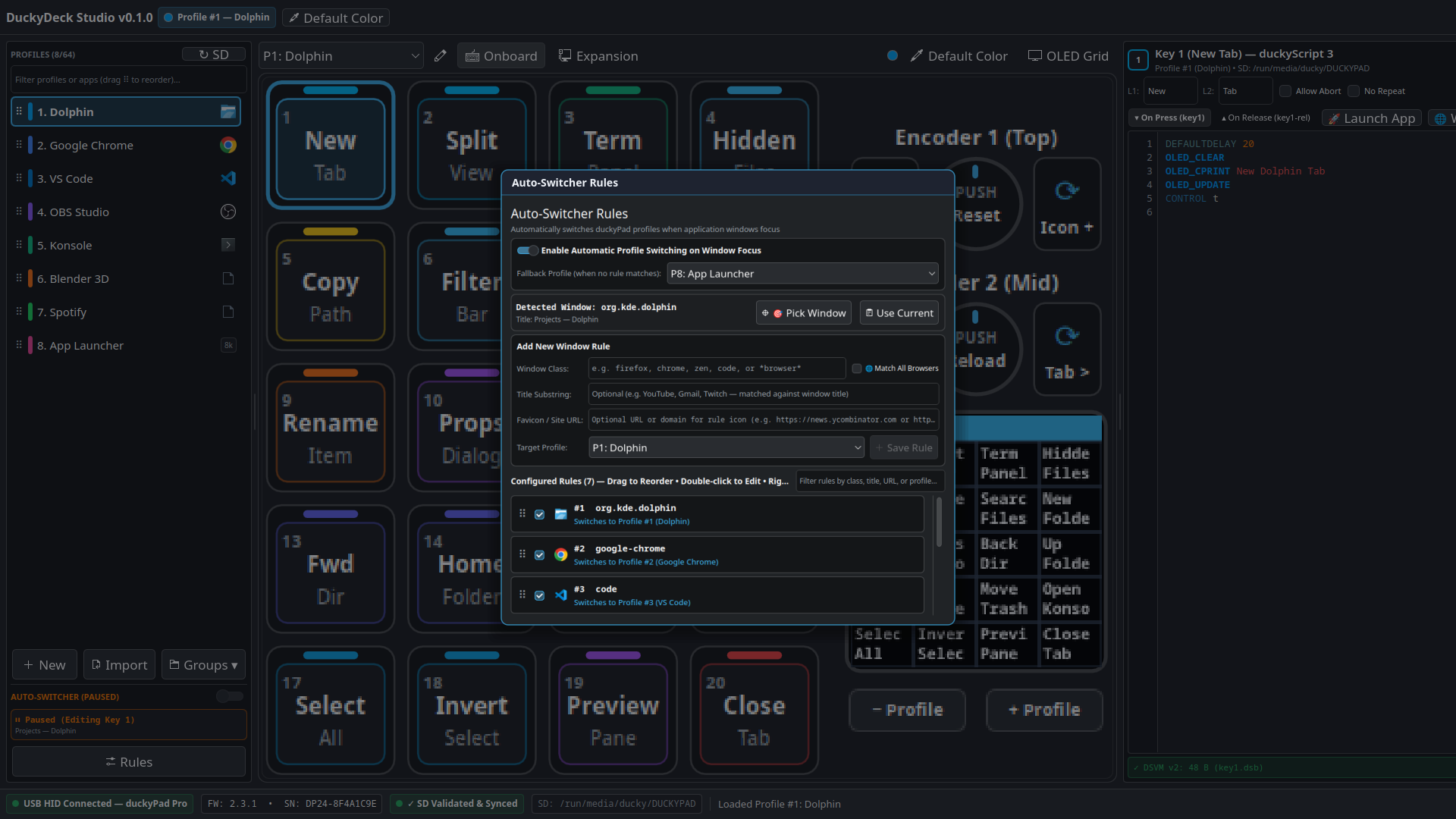
+ / - buttons on the duckyPad.
DuckyDeck Studio features a native Rust + `zbus` listener that integrates with KDE Plasma 6's KWin Wayland compositor to automatically switch duckyPad hardware profiles when you focus different windows or browser tabs.
- 🎯 Crosshair Window Picker: Right-click any profile in the sidebar and select Bind Window to This Profile (Pick Window)... (or click Pick Window inside the Rules dialog). Click any open window on your desktop to automatically capture its `resourceClass`, window title, and application icon.
- Browser Tab Title Matching: When picking a web browser (Zen Browser, Firefox, Chrome, Brave, Vivaldi, etc.), DuckyDeck Studio automatically strips the browser suffix so your rule matches the specific web app or tab title (e.g. `Miniflux`, `GitHub`, `YouTube`), or you can use `*browser*` to match all web browsers.
- Automatic Pause While Editing: Whenever the Right Key Inspector is open, the Auto-Switcher automatically pauses (`AUTO-SWITCHER (PAUSED)`) so switching to a browser or terminal to copy a URL or command won't yank the active profile away from the key you're editing!
- Floating OLED Desktop Widget: Mirrors the 128×128 OLED screen on your desktop with configurable scale (`1x`–`3x`), transparency (`0%`–`85%`, persisted across restarts), multi-monitor screen & KWin Wayland position memory, and instant independent per-profile orientation (`Follow OLED`, `0°`, `90°`, `180°`, `270°`) that does not require a microSD card sync.
🔢 11. Persistent Global Variables (`_GV0`..`_GV31`)
Open Variables (`_GV`)... from the `☰` menu to inspect and live-edit all 32 32-bit non-volatile Persistent Global Variables (`_GV0` through `_GV31`) over USB HID commands `0x18` (read) and `0x19` (write) in Signed Decimal, Unsigned Decimal, or Hexadecimal format.
_GV18 for instant Web API triggers, _GV19 for instant Application Launch triggers, and _GV20 for System Actions when using the default Silent USB HID Listener trigger mode.
✨ 12. AI Macro Architect
Click ✨ AI in the Right Inspector header (or AI Macro Architect... in the `☰` menu) to generate duckyScript 3 macros using natural language. DuckyDeck Studio grounds prompts with your local KDE shortcuts (`~/.config/kglobalshortcutsrc`) and validates the generated script with the built-in DSVM v2 compiler.
📋 13. System Event Log
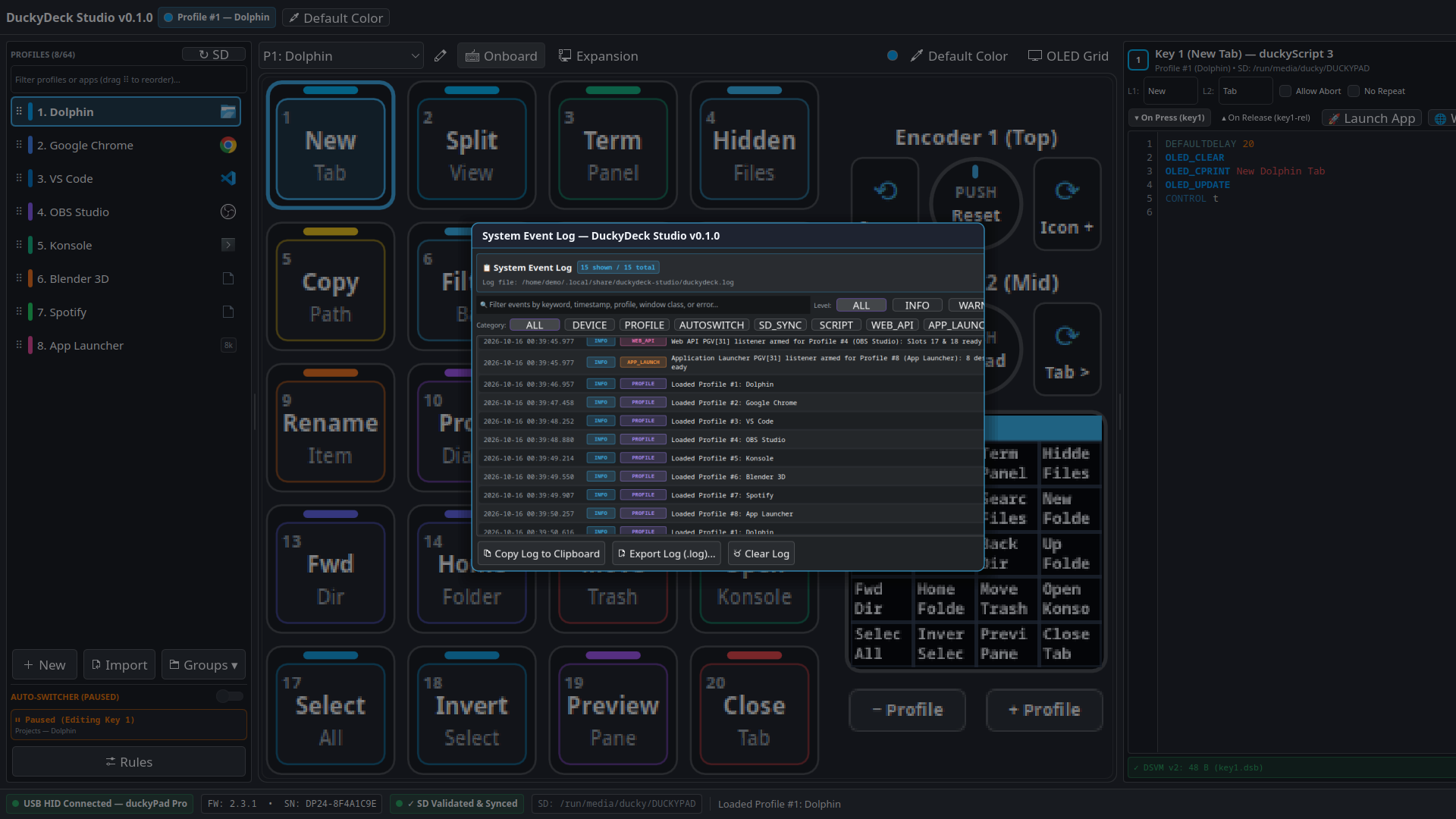
Open System Event Log... from the `☰` menu (or from the About window) to view real-time diagnostic events across all subsystems:
DEVICE— USB HID connection, firmware checks, RTC sync, and rebootsPROFILE— Profile selection, creation, templates, renaming, reordering, and color changesAUTOSWITCH— KWin Wayland window focus changes and automatic profile switchesSD_SYNC— microSD mounting, `.dsb` bytecode compilation, and file validationSCRIPT— Slot script saves and compiler diagnosticsWEB_API— HTTP webhook triggers, profile-change webhooks, status codes, latency, and response summariesAPP_LAUNCH— Application launch triggers, desktop IDs, PIDs, and error diagnosticsSYSTEM— Startup, REST API Server events, configuration persistence, and UI events
Logs are also persisted on disk at ~/.local/share/duckydeck-studio/logs/system_events.log and can be filtered, copied, or exported to a `.log` file.
⚙️ 14. Settings, HTTP REST API Server & Security Implications
1. Full Hardware & Host Control: Any client that can reach the HTTP REST API can switch, create, modify, or delete profiles and key scripts, synchronize bytecode to the microSD card, inject DuckyScript keystroke/mouse macros onto the host PC, control RGB LEDs and the OLED display, and execute host actions (APP_LAUNCH, WEB_API, SYS_ACTION) configured on slots.
2. Network Exposure (127.0.0.1 vs 0.0.0.0): The default listen IP 127.0.0.1 (port 28491) restricts access strictly to local processes on your computer. Changing the listen IP to 0.0.0.0 or a LAN IP exposes an unencrypted plain-HTTP server to all devices on your local network.
3. Token Authentication & Remote Access: Keep Require Bearer Token Authentication enabled at all times (clients must send Authorization: Bearer <token> or X-API-Token: <token>). Treat your generated 160-bit ddk_... token like a password, and never expose the plain-HTTP port directly to the public internet—use an HTTPS reverse proxy or SSH/WireGuard tunnel for remote access.
- 🌐 HTTP REST API Server (`Settings → HTTP REST API Server`):
- Enable or disable the embedded REST API server, choose the Listen IP (default
127.0.0.1) and Port (default28491), or click Reset Defaults (127.0.0.1:28491). - Click Generate Token to generate a new cryptographic Bearer token and Copy Token to copy it to your clipboard.
- Control all duckyPad functions via JSON endpoints under
/api/v1/*(/api/v1/health,/api/v1/status,/api/v1/profiles,/api/v1/profiles/select,/api/v1/profiles/reorder,/api/v1/profiles/{num},/api/v1/profiles/{num}/slots/{slot},/api/v1/profiles/{num}/slots/{slot}/trigger,/api/v1/dsvm/compile,/api/v1/templates,/api/v1/pgv,/api/v1/leds,/api/v1/sd/sync,/api/v1/device/sleep|wake|reboot|sync-rtc,/api/v1/logs). - OpenAPI 3.0 / Swagger Specification & Reference: View
docs/REST_API.md,docs/openapi.yaml, anddocs/swagger.json, or fetch the live spec directly from the server atGET /api/v1/openapi.json,GET /api/v1/swagger.json, andGET /api/v1/openapi.yaml.
- Enable or disable the embedded REST API server, choose the Listen IP (default
- 🔔 Global Profile Change Webhook (`Settings → Global Profile Change Webhook`): Configure an HTTP webhook that fires automatically whenever the active profile changes (via UI, physical duckyPad buttons, Window Auto-Switcher, or REST API).
- Global UI Text Zoom (`75%`–`160%`, Minimum `10pt` Base Font): Adjust UI text zoom across the entire application using Ctrl++ / Ctrl+= (zoom in), Ctrl+- (zoom out), or Ctrl+0 (reset to `100%`), or via `Settings → Global Text Scale`. Zoom levels are saved automatically and restored on restart. All popup windows can also be closed with Esc.
- System Tray (`StatusNotifierItem`): DuckyDeck Studio integrates natively with the KDE Plasma 6 System Tray, displaying a custom dynamic icon with your active profile number and color badge, quick profile switching submenu, and optional Minimize / Close to System Tray behavior.
🛠️ 15. Troubleshooting & FAQ
❓ My Web API or Launch App key didn't trigger on the duckyPad
1. Ensure DuckyDeck Studio is running on your host PC (either open on screen or minimized to the system tray)—Launch App (`APP`) and Web API (`API`) actions are host-dependent and require DuckyDeck Studio's USB HID listener.
2. Check the bottom status bar—if it says ⚠ Unsynced Changes, click ⬆ Sync to SD so the compiled `.dsb` bytecode is written to the duckyPad's microSD card.
3. Open ☰ → System Event Log and filter by WEB_API or APP_LAUNCH to see the exact trigger event (`_GV31` or `F13–F24`) and any HTTP or process errors.
❓ Auto-Switcher isn't switching profiles right now
Check if the Right Key Inspector is currently open—Auto-Switcher intentionally pauses (`⏸ Paused (Editing Key N)`) while you are editing a key so your active profile doesn't jump away while you switch windows. Close the key editor (`✕`) to resume automatic switching.
🙏 16. Special Thanks to dekuNukem & Official duckyPad Links
🦆 Official duckyPad & DuckyDeck Studio Websites
Explore official hardware specifications, getting started guides, DuckyScript 3 documentation, and firmware updates:
- DuckyDeck Studio Documentation: https://duckydeckstudio.com
- Official duckyPad Site: https://www.duckypad.com
- duckyPad Pro GitHub: github.com/dekuNukem/duckyPad-Pro
- duckyPad (2020) GitHub: github.com/dekuNukem/duckyPad
🛒 Where to Buy — dekuNukem's Official Tindie Store
Order an official duckyPad Pro, hot-swappable mechanical macropad kits, rotary encoder modules, and expansion accessories directly from dekuNukem:
- Tindie Storefront: tindie.com/stores/dekunukem
- duckyPad Pro on Tindie: duckyPad Pro: Macro Scripting Beyond QMK/VIA